CRUD Demo — demo.txt
Automated test
Before loading the UI, demo_dream11.py performs a full
Create / Read / Update / Delete cycle on
D:\Uday\Yug\dream11\demo.txt to verify core I/O works
correctly against the live working directory.
| # | Operation | File | Action | Result |
|---|---|---|---|---|
| 1 | CREATE | demo.txt |
Path.write_text() — wrote initial content |
✓ OK |
| 2 | READ | demo.txt |
Path.read_text() — verified content matches |
✓ OK |
| 3 | UPDATE | demo.txt |
Appended timestamp line: "Updated: 2026-02-26 HH:MM:SS\n" |
✓ OK |
| 4 | DELETE | demo.txt |
Path.unlink() — confirmed exists() == False |
✓ OK |
| 5 | RECREATE | demo.txt |
Re-written for UI display in Sync / Diff / Env panels | ✓ OK |
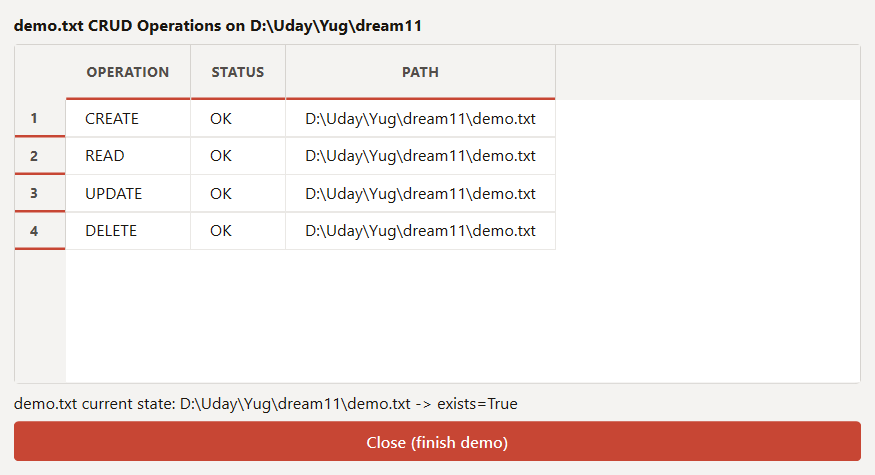
D:\Uday\Yug\dream11\demo.txt.
Importing dream11.config.json
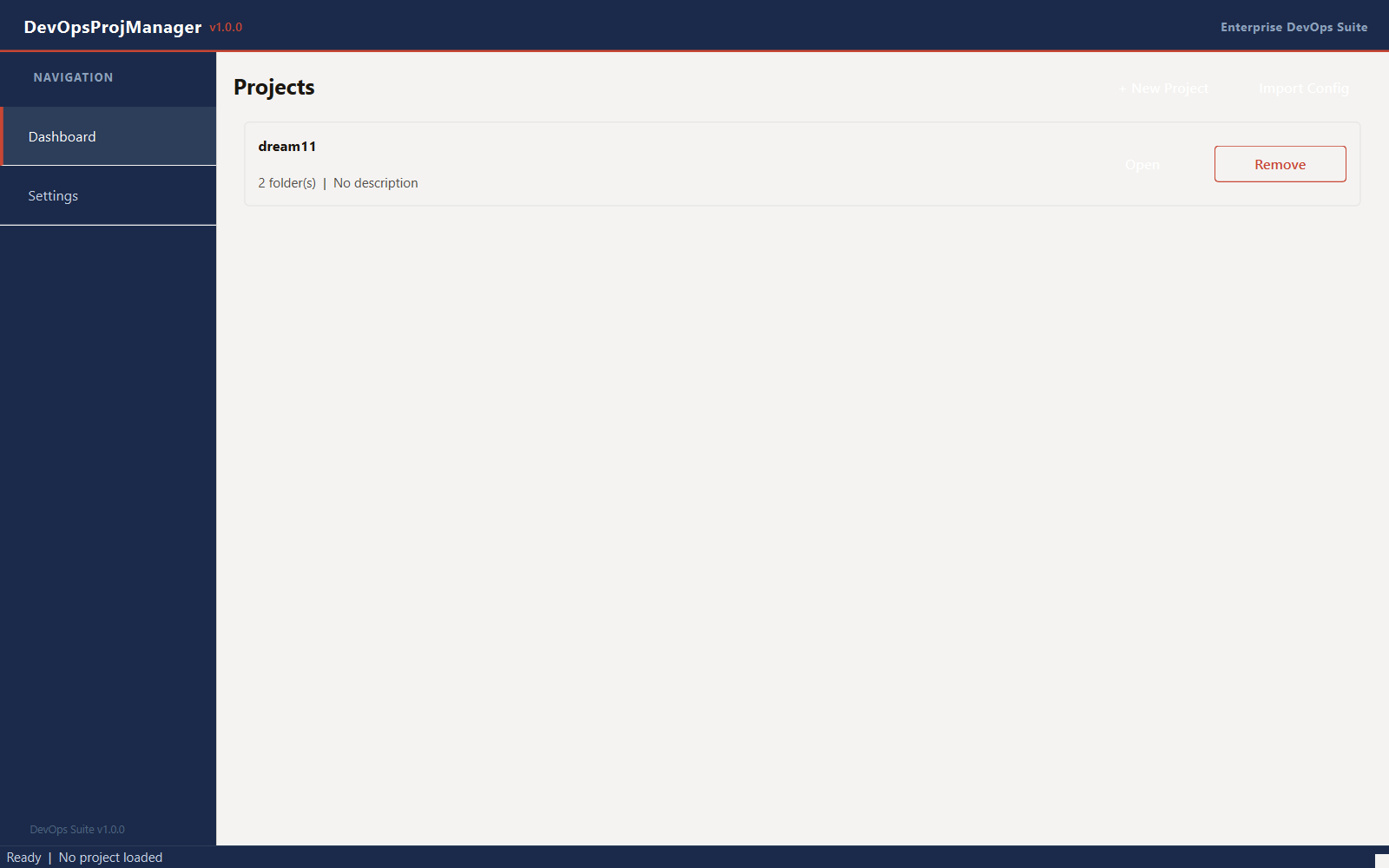
Dashboard → Import
The legacy PowerShell config file is imported via the
Import Config button on the Dashboard.
import_legacy_config() reads
dream11.config.json and converts it into a typed
Project object with 2 folders and 10 services.
Legacy JSON structure
{
  "ProjectName": "dream11",
  "WorkDir":     "D:\\Uday\\Yug\\dream11",
  "GitDir":      "D:\\Uday\\Yug\\dream11-git",
  "RemoteOrigin": "origin",
  "Branch":      "main",
  "ExcludeDirs": ["node_modules", ...],
  "Services": {
    "dev":  [...5 services...],
    "prod": [...5 services...]
  }
}
Resulting Project object
Project(
  name="dream11",
  folders=[
    FolderConfig(
      name="Dev",
      path="D:\\Uday\\Yug\\dream11",
      type=FolderType.DEV),
    FolderConfig(
      name="Git",
      path="D:\\Uday\\Yug\\dream11-git",
      type=FolderType.STABLE),
  ],
  services=[...10 ServiceDefinition...],
)
Project View
Click project card
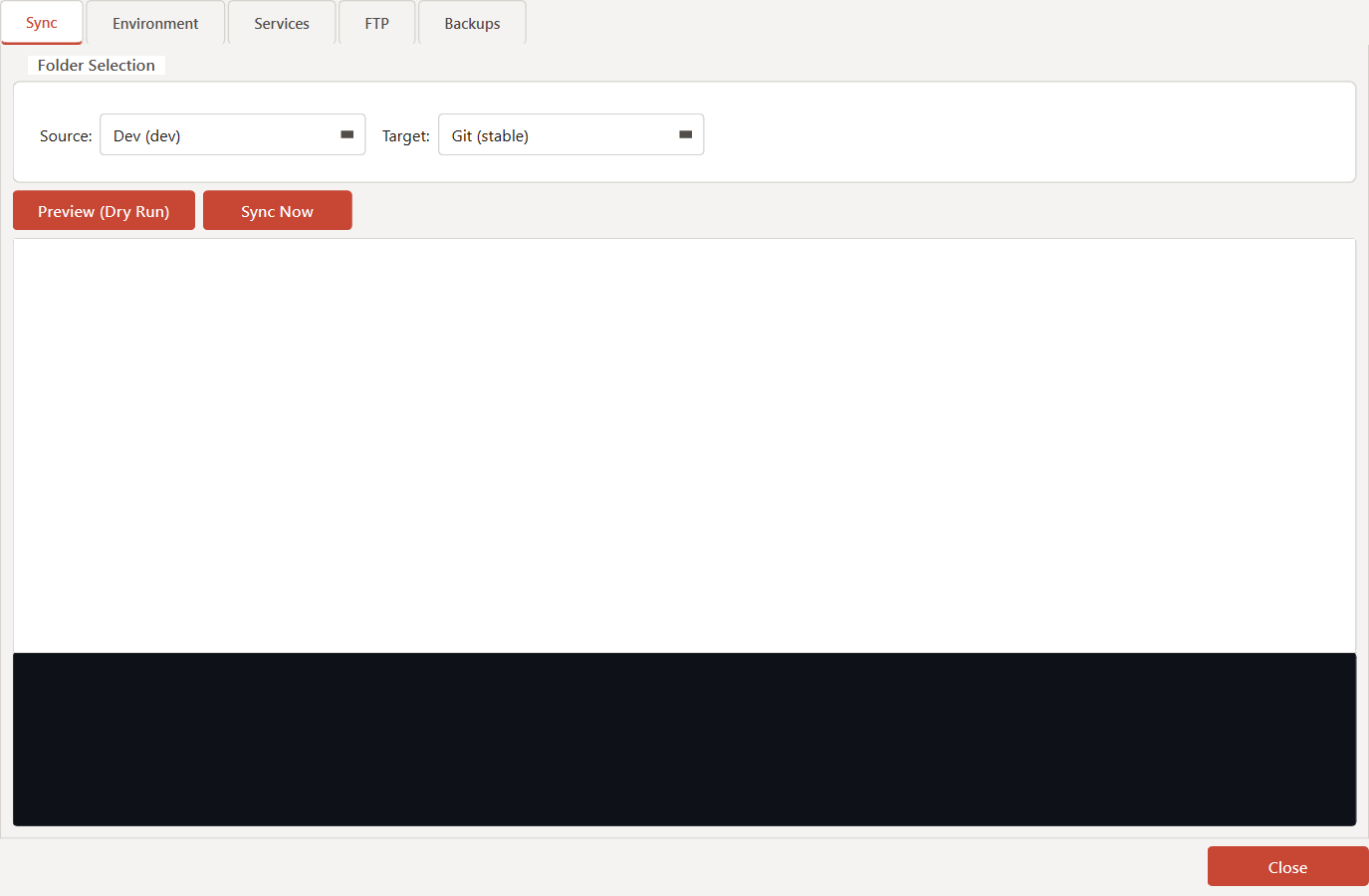
Clicking the dream11 project card opens a tabbed
ProjectView dialog with five tabs:
Sync / Environment / Services / FTP / Backups.
Sync Panel
Tab: Sync
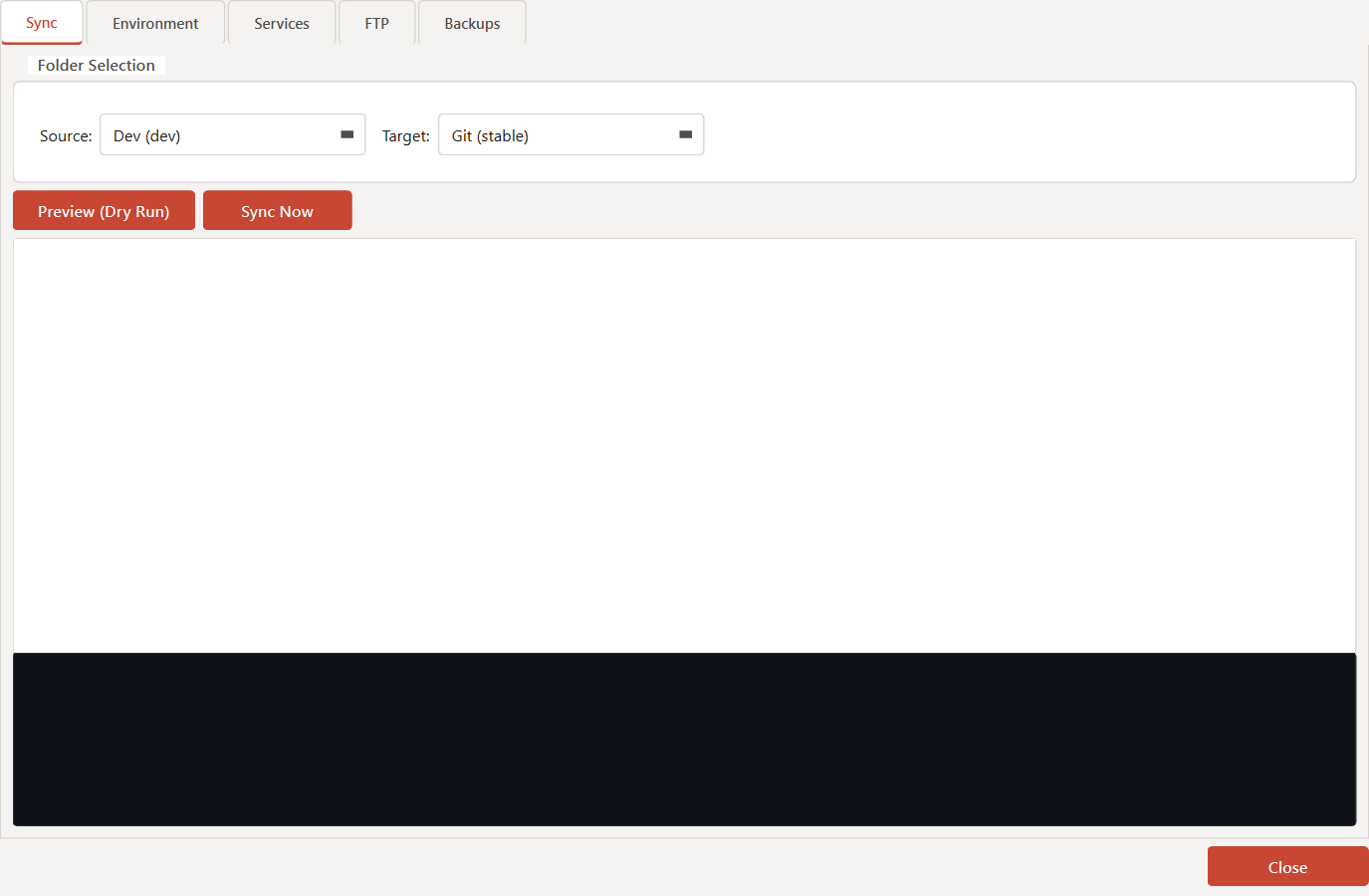
The Sync tab lets you preview and execute a folder-to-folder
sync. Source and target are selected from the project folders
(Dev and Git for dream11). Clicking
Preview runs a dry-run via filecmp.dircmp;
Sync Now creates a versioned backup first, then calls
execute_sync().
- Select Source folder from the dropdown (e.g. Dev — D:\Uday\Yug\dream11)
- Select Target folder (e.g. Git — D:\Uday\Yug\dream11-git)
- Click Preview to see new / modified / deleted file counts without writing anything
- Review the preview list —
demo.txtwill appear as a new file - Click Sync Now to execute (a versioned zip backup is created first)
Environment Editor
Tab: Environment
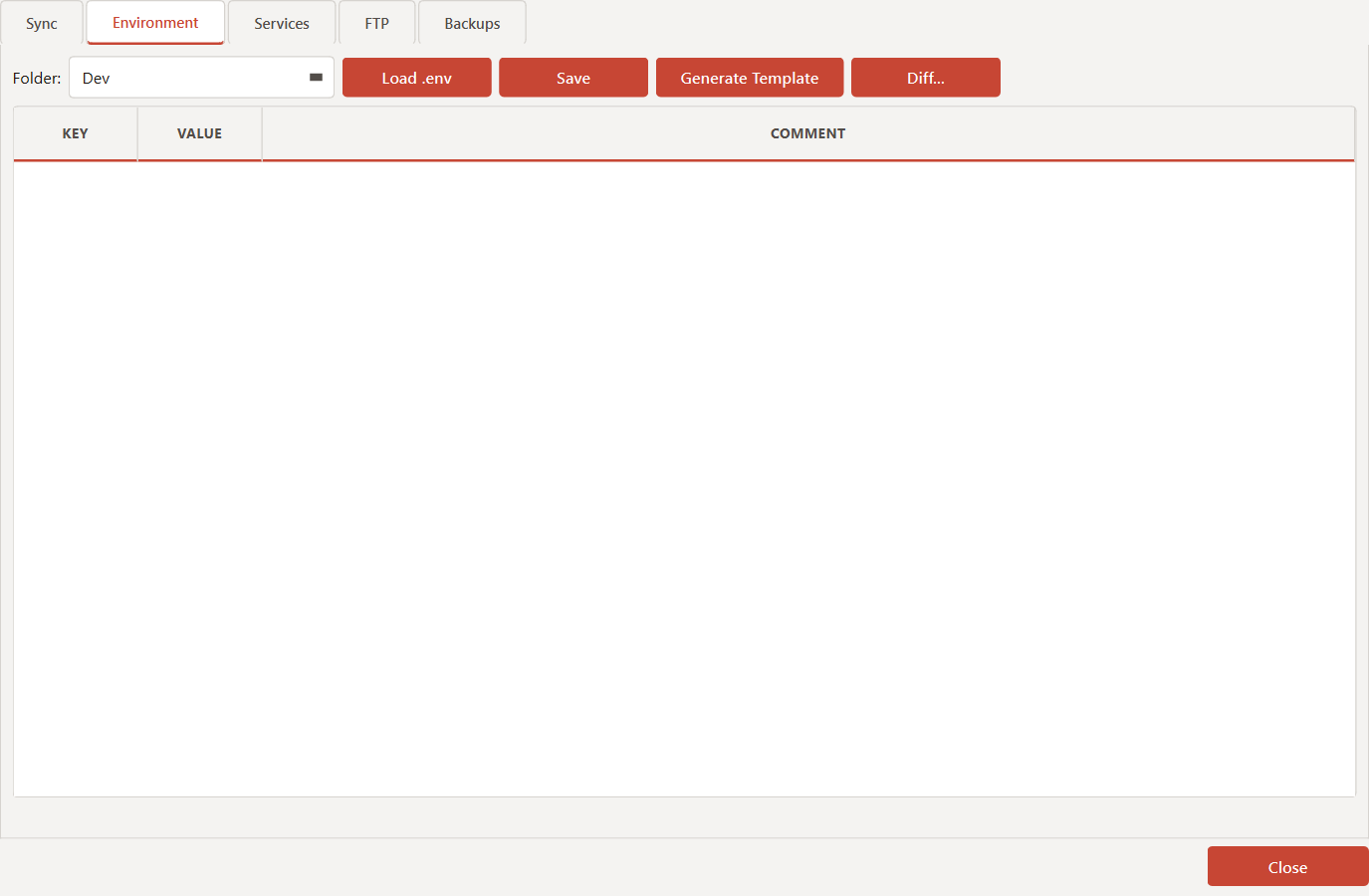
The Environment tab parses every .env file
in the project folders into a key/value table. Sensitive fields
(passwords, tokens, keys) are automatically masked with
***. You can load, save, generate a template, or diff two
.env files directly from this panel.
PASSWORD, SECRET, TOKEN,
KEY, API, or AUTH are
automatically masked in the table. The real value is only written back
on Save.
Service Panel
Tab: Services
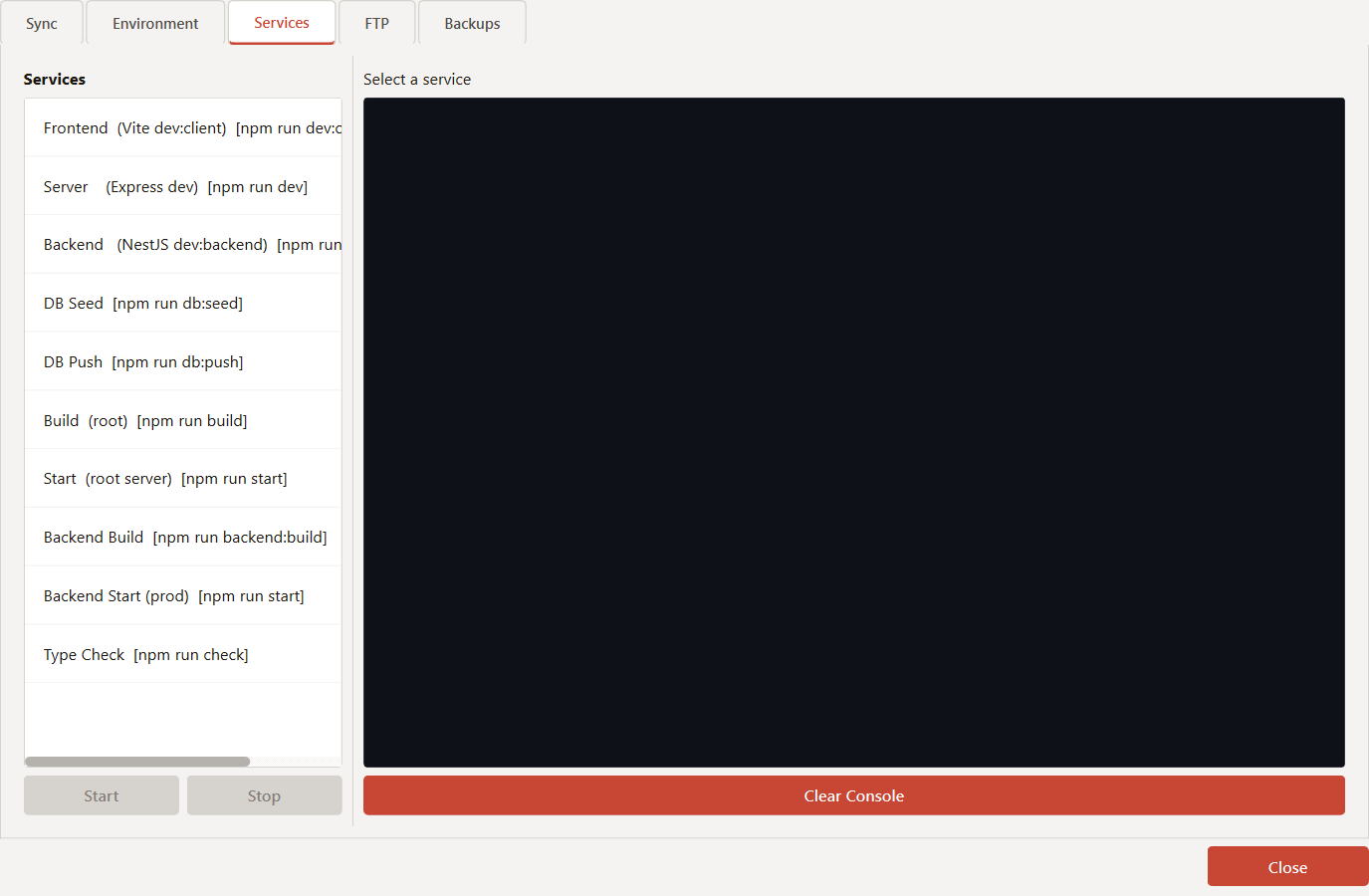
dream11 has 10 services (5 dev, 5 prod) defined in
dream11.config.json. The Services tab lists all of them;
clicking Start spawns the command in a subprocess.Popen
with live stdout/stderr streamed into the console widget.
| Type | Name | Command | Dir |
|---|---|---|---|
| dev | Frontend (Vite dev:client) | npm run dev:client | WorkDir |
| dev | Server (Express dev) | npm run dev | WorkDir |
| dev | Backend (NestJS dev:backend) | npm run dev:backend | WorkDir |
| dev | DB Seed | npm run db:seed | WorkDir |
| dev | DB Push | npm run db:push | WorkDir |
| prod | Build (root) | npm run build | GitDir |
| prod | Start (root server) | npm run start | GitDir |
| prod | Backend Build | npm run backend:build | GitDir |
| prod | Backend Start (prod) | npm run start | GitDir\backend |
| prod | Type Check | npm run check | GitDir |
Backup Browser
Tab: Backups
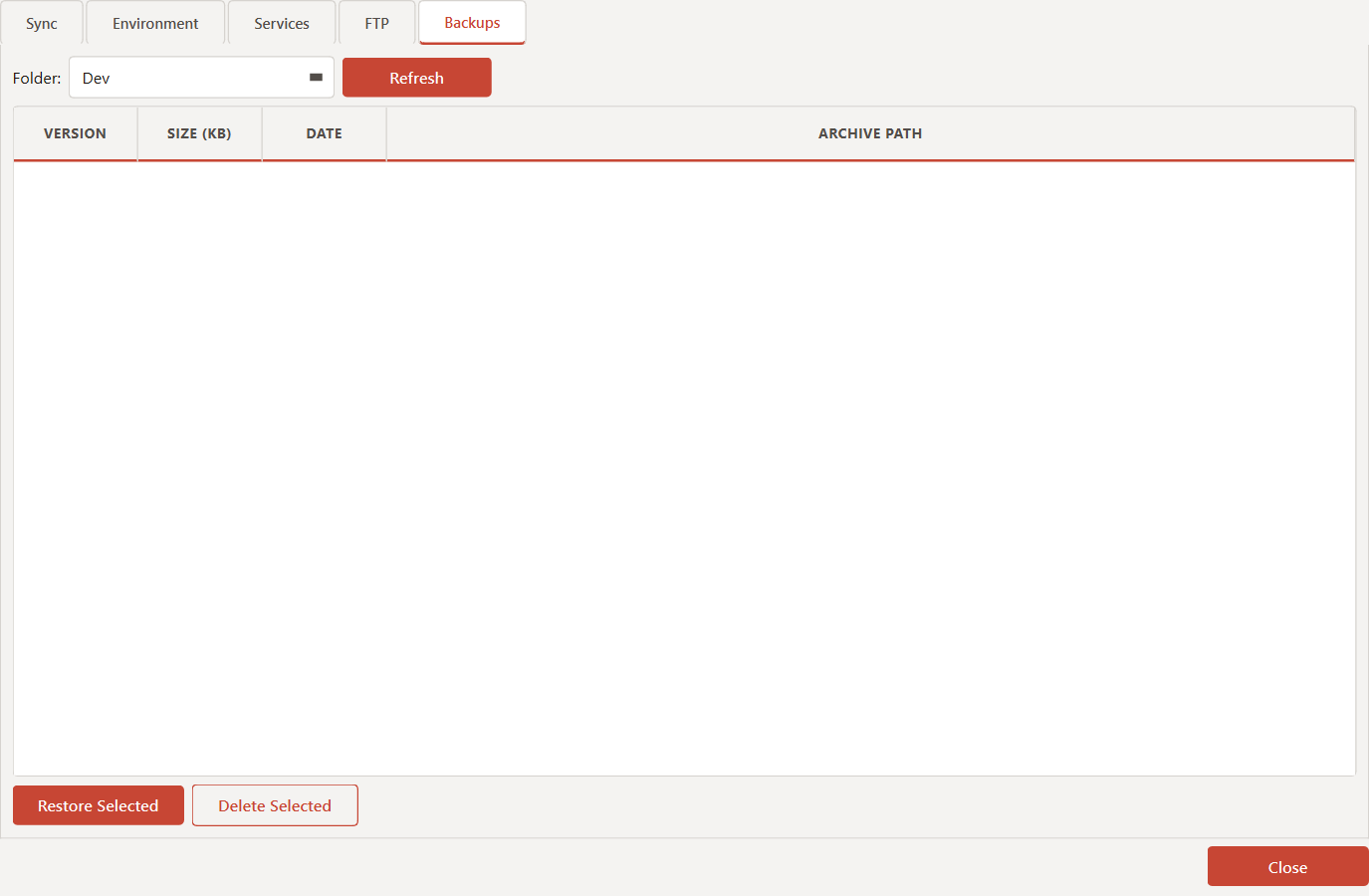
Every time you run Sync Now the application automatically creates
a versioned .zip snapshot of the target folder (v001, v002, …).
The Backup Browser lists all snapshots for each project folder with size,
date, and a one-click Restore button.
Settings Dialog
Sidebar → SettingsClick Settings in the sidebar (or press Ctrl+,) to open the global application settings.
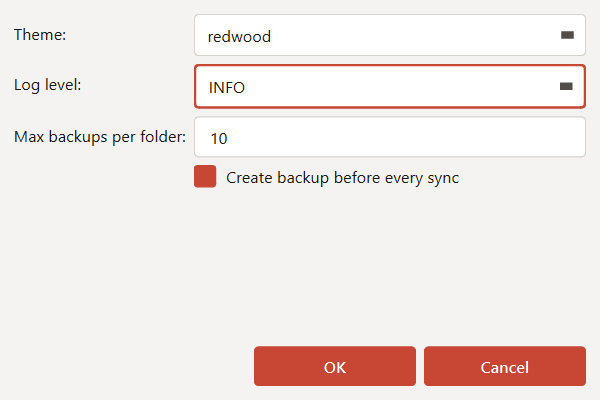
| Setting | Default |
|---|---|
| Theme | Redwood (Enterprise) |
| Log level | INFO |
| Max backups / folder | 10 |
| Auto-backup on sync | Enabled |
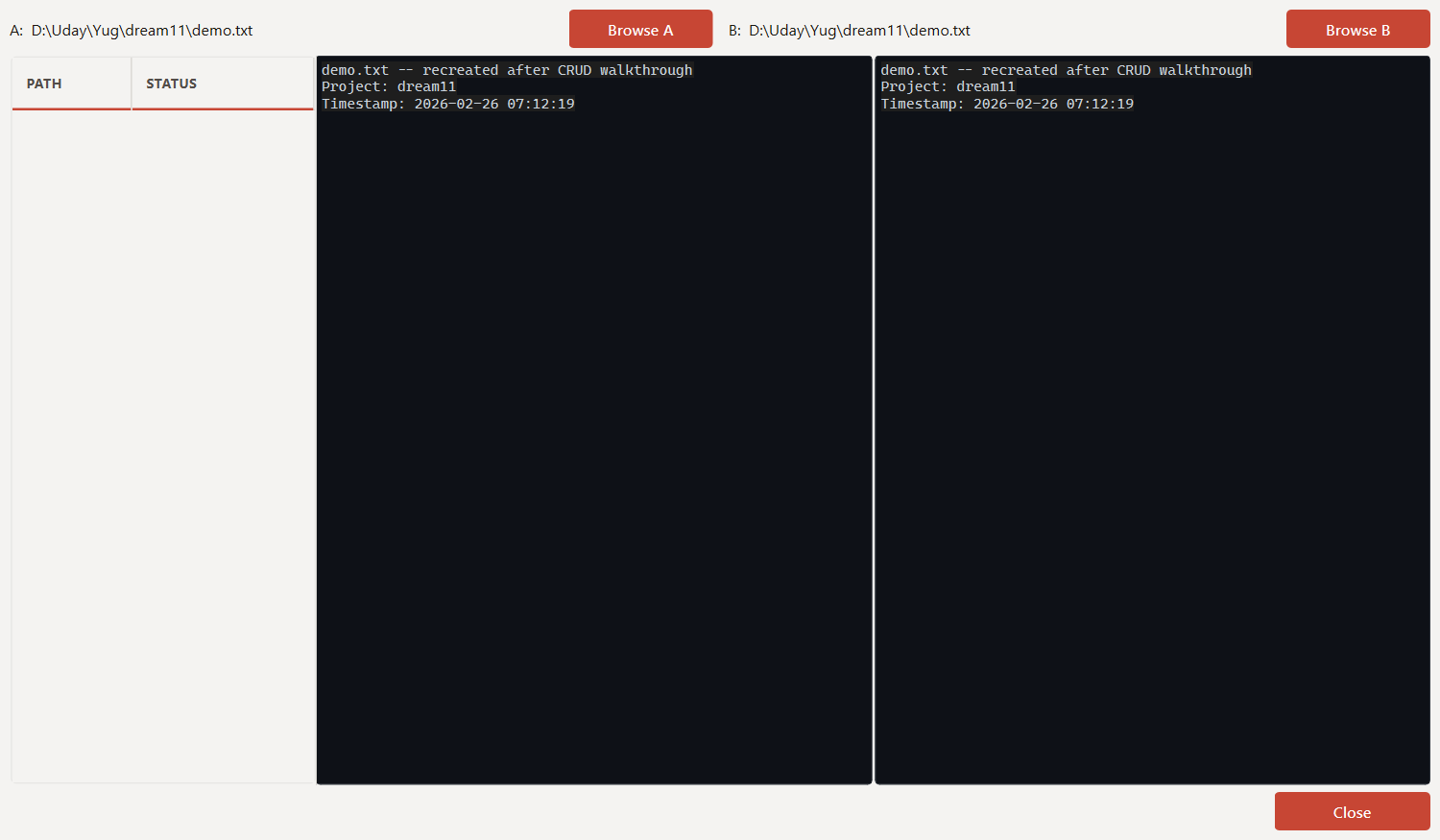
Diff Viewer
Beyond Compare-style
The Diff Viewer provides a side-by-side file comparison powered by
difflib.SequenceMatcher. Color coding matches industry
convention: green for insertions, red for deletions, amber for replacements.
The top folder tree lets you select any changed file across an entire
directory comparison.
FTP / SFTP Panel
Tab: FTP
The FTP panel provides a dual-pane file browser. Local files are on the
left; remote files (after connecting) are on the right. Supports plain
FTP, FTPS (explicit TLS), and SFTP (SSH) via
paramiko. Passwords are encrypted at rest using Fernet.

- Fill in Host, Port, Username, Password
- Select protocol: FTP / FTPS / SFTP
- Click Connect (retries 3x with exponential back-off on failure)
- Browse the remote directory in the right pane
- Select a local file and click Upload to transfer
- Select a remote file and click Download to a local folder
Git Integration
GitPython 3.1
dream11 uses branch: main, remote: origin
as defined in the legacy config. The Git panel (inside Project View)
lets you pull, commit, push and switch branches without leaving the app.
All Git operations run in a QThread worker to keep the UI
responsive.
Supported operations
| Operation | Core function |
|---|---|
| Status | git_manager.get_status() |
| Branches | get_branches() |
| Log | get_log(n=50) |
| Pull | pull(remote, branch) |
| Commit + Push | commit_and_push(msg) |
| Checkout branch | checkout_branch(name) |
| Create branch | create_branch(name) |
| Clone | clone(url, dest) |
dream11 Git config
GitConfig(
  remote="origin",
  default_branch="main",
  auto_pull=False,
  sign_commits=False,
)WorkDir or
GitDir to already be initialised as a git repository
(git init / git clone).
Keyboard Shortcuts & UI Design
| Shortcut | Action |
|---|---|
| Ctrl+, | Open Settings |
| Ctrl+N | New project |
| Ctrl+O | Import legacy config |
| Ctrl+S | Save current config |
| F5 | Refresh project list |
| Escape | Close dialog |
UI design principles
- Oracle Redwood enterprise theme — navy sidebar, red accents
- All heavy work in
QThreadworkers — UI never freezes - Signals/slots connect workers to panels cleanly
- All text / code is ASCII-only for maximum portability
- Passwords masked in UI; encrypted at rest with Fernet
- Auto-backup before every destructive sync (versioned zips)